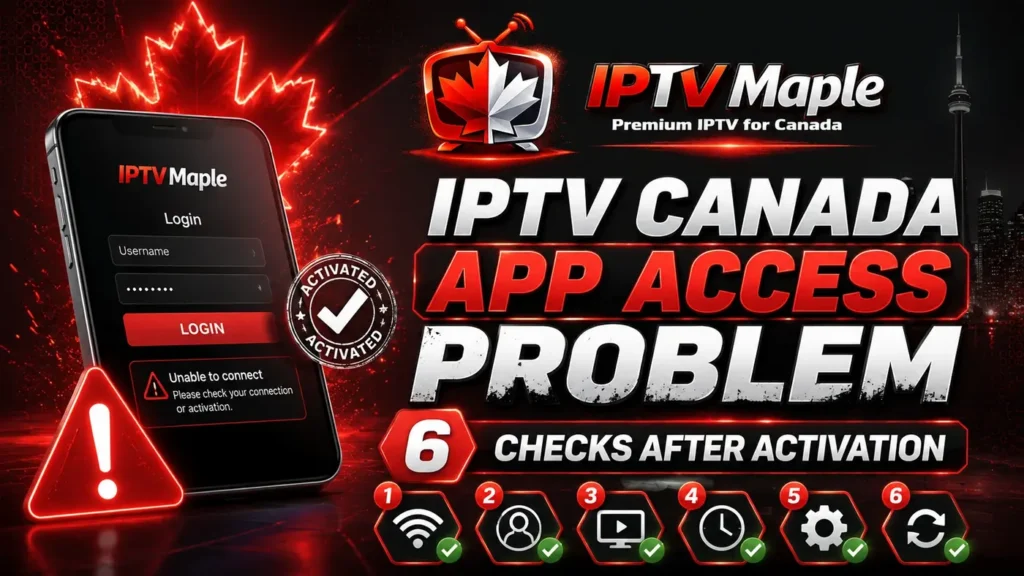
IPTV Canada App Access Problem: 6 Checks After Activation
IPTV Canada App Access Problem usually appears after activation, when the user already has access details but the app does not accept them correctly. This is different from missing access, payment delay or a general streaming issue.
This guide explains what to check inside the app before contacting support: access format, login method, activation status, device restart, field changes and the exact details to send. For the full post-purchase support path, start with the IPTV Canada Support Guide.
Why IPTV Canada App Access Problem happens after activation
An IPTV Canada App Access Problem can happen even when the order is confirmed and the activation details were received. In many cases, the problem is not the access itself but the way the app reads the information.
The app may ask for a specific login method, separate fields, a server address, or a different format. If the access is placed in the wrong area, the app may reject it or show an unclear message.
This is not the same as IPTV Canada access not received. If no details arrived at all, check email, spam and payment status first. If the details arrived but the app does not accept them, this article is the right guide.
The user has details but the app does not connect, does not accept fields or shows a message after trying to log in.
If no email or details were received, the issue should be handled as an access-delivery problem first.
1. Confirm the app matches your access details
The first check is to confirm that the app matches the access details. Some apps accept one type of login method, while others ask for different fields. Using the wrong app can create an IPTV Canada App Access Problem even when the access is valid.
Before changing anything, look at the instructions received after activation. If the message mentions a specific app type, field format or login method, follow that structure carefully.
Users who are still unsure whether activation is complete can review IPTV Canada activation before continuing with app-level checks.
2. Check the login method inside the app
Many app access problems come from using the wrong login method inside the same app. One screen may ask for username, password and server. Another screen may ask for a different format. If the wrong method is selected, the access will not work correctly.
Check whether your details are meant for username and password fields, a server field, a playlist field or another access format. Do not guess. Match the details with the field labels shown inside the app.
Make sure the app screen matches the type of access you received.
Place username, password and server only where the app asks for them.
Retry after checking fields instead of changing every setting at once.
3. Verify activation before changing settings
Sometimes the app does not accept the details because activation is not fully ready yet. If the order was just completed, the access may still need confirmation or a final update before the app accepts it.
Before deleting the app or trying many devices, confirm that the activation step is complete. If activation is still pending, changing app fields will not solve the issue.
If the app shows a message related to invalid access, expired access or unavailable connection, keep that message exactly as shown. It can help support understand whether the problem is in the app, the details or the activation status.
Do not reset everything too quickly. A clear screenshot or exact error wording can be more useful than changing the app, device and details many times.
4. Restart the app and device cleanly
A temporary app issue can also create an IPTV Canada App Access Problem. If the app was open for a long time, recently updated, or stuck after a failed attempt, a clean restart can help.
Close the app fully, reopen it and enter the details again carefully. If the device feels slow or frozen, restart the device too. This simple step can clear temporary errors without changing the access details.
Google’s support page about how to fix an installed app gives general app-level checks that can help users understand basic restart and update behavior.
5. Avoid changing too many fields at once
When an app does not accept access, many users start changing several things at the same time: app, device, server field, username field, password field and connection. That can make the problem harder to identify.
A better method is to change only one thing at a time. First confirm the correct app. Then confirm the login method. Then check the fields. Then restart the app. This order helps support understand what was already tested.
If the problem is actually IPTV Canada login not working, focus on credentials and fields first. If the whole app access path is unclear after activation, keep the issue under app access and send support the app details.
6. IPTV Canada App Access Problem: when to contact support
If the app matches the details, the login method is correct, activation seems complete, and the app was restarted cleanly, then support should be contacted with a structured message.
A support request about IPTV Canada App Access Problem should explain that the access was received, the app was tested, and the issue appears inside the app after activation. This avoids confusion with missing access or payment delay.
Users can also start from iptv canada and follow the guide that best matches the exact support situation.
What details to send to support
To get faster help, include the app name, device name, access type, exact message shown, and what you already checked. Do not send only “the app does not work” because support will need more context.
Mention whether the details were received, whether activation looks complete, and whether the app rejects the fields or opens but does not show access correctly. These small details make the support request easier to understand.
IPTV Canada App Access Problem checklist
Use this checklist before contacting support about app access after activation.
- Confirm that access details were received.
- Check that the app matches the access format.
- Use the correct login method inside the app.
- Match each field carefully before retrying.
- Restart the app and device cleanly.
- Avoid changing many settings at the same time.
- Keep the exact error message or screenshot ready.
Simple support message example
If the IPTV Canada App Access Problem continues, use a clear message like this:
- Hello, I received my access details after activation.
- I am using this device and this app.
- The app does not accept the details / shows this exact message.
- I checked the login method and matched the fields carefully.
- I restarted the app and device before contacting support.
- Can you please verify if the app access format or activation status is correct?
Common mistakes with app access after activation
The first mistake is treating app access as the same thing as missing access. If the details were never received, the issue is not app access yet. It is an access delivery problem.
The second mistake is using a different login method inside the app. If the app has several screens or formats, the details may fail in the wrong area.
The third mistake is changing the app and device repeatedly before collecting the error message. Support usually needs the exact message to identify the next step.
The fourth mistake is mixing app access with streaming performance. Buffering, freezing or quality drops are separate issues and should not be confused with app access after activation.
FAQ about IPTV Canada App Access Problem
What does IPTV Canada App Access Problem mean?
IPTV Canada App Access Problem means the user has access details, but the app does not accept them correctly or does not open the access after activation.
Is this the same as access not received?
No. Access not received means no details arrived. App access problem means details exist but the app does not accept them or does not use them correctly.
Should I try another app immediately?
Not immediately. First check the recommended app, login method, fields and activation status. Changing apps too quickly can create more confusion.
Can restarting the app help?
Yes. A clean app restart can remove temporary issues, especially if the app was stuck after a failed login attempt.
What should I send to support?
Send the app name, device name, access type, exact message shown and what you already checked before contacting support.
Is this a streaming problem?
Not usually. App access happens before normal use. Streaming performance issues like buffering or freezing are separate topics.
Conclusion: solve app access with clear checks
IPTV Canada App Access Problem should be handled step by step. Confirm that the app matches the access details, choose the correct login method, verify activation, restart the app and avoid changing too many settings at once.
If the issue continues, send support a clear message with the app, device, exact error and checks already completed. This keeps the request focused and makes the post-activation process easier in 2026.