Live TV Works, but Your Program Guide Is Blank?
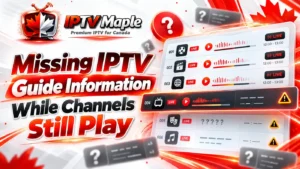
Missing IPTV guide information can be confusing when television channels still play normally. You can watch the live broadcast, but the electronic program guide shows empty time slots, missing titles or messages such as “No information available.”
This does not automatically mean your IPTV connection has failed. Video playback and program schedule data are separate functions, and one can work while the other has a problem.
This guide explains five practical checks for Canadian viewers, whether the missing details affect a few channels or the entire TV guide.
Why Can Live TV Work Without Program Information?
An IPTV application may receive playable channel streams and scheduling information through different processes. The video tells your device what to play, while EPG data supplies titles, broadcast times and sometimes descriptions.
When the schedule information is unavailable or cannot be associated with a channel, the app may continue playing video without showing any program details.
If you need an introduction to reading television schedules, our IPTV program guide explains the essential parts of a normal listing.
A channel plays successfully even though its program title is unavailable.
Scheduling information may be absent, incomplete or not yet available to the application.
The application must associate the right schedule information with each channel.
Key distinction: Missing IPTV guide information describes absent program details. It is not the same as an incorrect title or a program appearing at the wrong hour.
1. Confirm That Live TV Works Without Guide Details
Begin by opening an affected channel and checking whether its video and audio play normally. Then open the corresponding guide entry and inspect what appears where the program title should be.
You may see an empty row, a blank description, a placeholder or a message indicating that program information is unavailable.
Write down the exact behaviour. A missing title is different from a loading screen that never finishes, and both are different from a channel that cannot play.
The channel opens and displays live television. The investigation can focus on the missing guide details.
If video will not start, record that separately. A blank guide does not establish the cause of a playback failure.
For missing IPTV guide information, keep your first test limited to observing the guide. Avoid reinstalling the application or changing playback settings at this stage.
2. Check Whether One Channel or the Entire Guide Is Empty
The next step is to compare several channels during the same time period. This tells you whether the missing information is limited to certain entries or affects the whole guide.
Imagine three fictional Canadian television channels. All three play normally, but only one displays a complete program listing.
Fictional guide • Same evening • 7:15 p.m.
| Channel | Live Playback | EPG Information |
|---|---|---|
| Channel A | Working | No information available |
| Channel B | Working | Harbour Report 7:00–7:30 PM |
| Channel C | Working | Blank listings |
Illustration only. All channels and program names are fictional.
Channel B confirms that some guide information is visible. Channels A and C still need investigation. This pattern suggests a more limited problem than a completely empty schedule, but it does not identify the cause by itself.
What If Every Channel Has an Empty Guide?
If all channels play but every guide row is blank, record that as a separate result. A guide-wide issue makes it useful to review the application’s general EPG availability rather than assuming one channel has been mapped incorrectly.
The extent of missing IPTV guide information is an important clue, not a final diagnosis.
3. Verify Whether EPG Data Is Available
Some applications show an EPG status, a last-update message, a loading indicator or a guide-source configuration. Others provide little information about where their schedule data comes from.
Check what your application actually exposes. Look for evidence that program information has been loaded, without assuming that every player offers an EPG diagnostics screen.
The official Tvheadend documentation explains how electronic program guide data is supplied through sources including broadcast data and external XMLTV grabbers. This illustrates why guide information can depend on a separate data source.
Your own IPTV app may work differently. A viewer cannot always determine from the interface whether missing data originates at the source, fails during retrieval or is simply not matched to the channel.
Empty entries, an EPG status message, a loading indicator, or program titles appearing on some channels but not others.
Whether a data source contains the listings, whether the app retrieved them successfully, or whether the correct channel was associated.
If missing IPTV guide information affects only a few channels, note their exact displayed names. If the whole guide is empty, note whether the application shows any indication that EPG data was loaded.
4. Try One Safe Guide Refresh
Some IPTV players offer an option to refresh, reload or update EPG information. If your application provides a clearly labelled guide refresh, you can use it as a controlled test.
Record the original symptoms first. Then refresh the guide once and allow the application to complete the process if it displays progress. Reopen the same channel and time slot afterward.
The location of this option varies between applications. Do not follow a menu path intended for a different player unless its documentation confirms that the instructions apply.
Do not confuse refresh with reset. Refreshing EPG data is not the same as clearing application data, deleting a playlist, resetting account details or reinstalling the entire app. Those actions may remove saved settings.
If no guide-refresh option exists, simply closing and reopening the guide may be worth checking, but it is not guaranteed to download new data. Avoid repeated resets when the source of the problem remains unknown.
Missing IPTV guide information may persist when the needed data is unavailable or cannot be associated correctly, even after a successful refresh.
5. Compare the Result and Identify the Next Step
Return to the channels and time slots recorded earlier. Check whether titles, descriptions and scheduled times now appear where information was previously missing.
Compare the result with your original observations. A successful test should show a visible improvement, not merely a completed loading animation.
Confirm that the correct channel now has useful current program details. Check a second affected channel before concluding that the issue is resolved.
Record which channels are affected, the app and device used, and the result of the refresh. Further source or channel-association review may be needed.
An EPG that remains blank after one safe attempt does not prove that your device is defective. The application may simply be unable to display the necessary schedule information.
When missing IPTV guide information continues, avoid modifying unrelated time-zone or video settings. Those changes do not necessarily address absent program metadata.
How to Recognize a Different TV Guide Problem
A missing listing should not be confused with one that contains incorrect information. If the title exists but describes a different live program, you can check why the guide listing does not match the channel .
Likewise, if today’s programs appear correctly but tomorrow’s listings are unavailable, the issue may concern the dates covered by the guide rather than completely absent information.
Keeping these symptoms separate makes it easier to choose the appropriate troubleshooting method instead of refreshing the schedule repeatedly.
Checklist for Missing IPTV Guide Information
Use these checks before taking more disruptive troubleshooting steps.
- Confirm that the affected live channel plays normally.
- Record the exact blank entry or message shown.
- Compare several channels during the same time period.
- Identify whether the entire guide is empty.
- Inspect available EPG status information in the app.
- Refresh guide data once if the player supports it.
- Recheck the same channels and time slots.
- Avoid clearing app data or deleting playlists.
What to Record If Your EPG Is Still Empty
If the guide remains blank, prepare a concise description of the problem. Include the device, application, affected channel names, approximate time of the test and whether the issue affects every channel or only some of them.
Mention whether the application displayed an EPG loading status and whether a supported refresh changed anything. A screenshot of an empty listing may also be useful.
Avoid sharing login credentials or private playlist URLs in screenshots or public messages. If you need broader assistance with your setup, visit the iptv canada homepage for IPTV Maple information and available support resources.
Frequently Asked Questions About Blank IPTV Guides
Why does my IPTV guide say “No information available”?
The application may not have usable schedule information for that channel and time slot. Possible explanations include unavailable data, unsuccessful retrieval or incorrect channel association. The message alone cannot confirm which explanation applies.
Can IPTV channels work without EPG data?
Yes. A playable stream and its program schedule are separate functions. Live television may continue working even when titles and descriptions are unavailable.
Why are some channels missing program details?
Certain channels may lack usable listings while others have complete data. Compare several channels and record the exact scope before investigating channel associations.
What if the entire IPTV guide is blank?
Check whether the app displays any EPG status information and whether it supports a safe guide refresh. An entirely blank guide may indicate a broader data-availability issue, but the cause still needs verification.
Will refreshing EPG data restore every missing title?
No. Refreshing can help when usable data becomes available to the application, but it cannot guarantee that missing or unmatched source information will be corrected.
Should I clear application data to restore the guide?
Not as a first step. Clearing data may erase saved configurations or account information. Start with observation and a supported EPG refresh instead.
Conclusion: Check the Guide Without Disrupting Live TV
Missing IPTV guide information does not automatically indicate a problem with your live television connection. When channels still play, focus on which program details are absent and how many channels are affected.
Compare the same time period, inspect what the application reveals about its EPG data and try one supported refresh. If the information remains missing, document the result rather than repeatedly resetting the application.
A careful diagnosis protects your working TV setup while helping identify whether the next investigation belongs with the guide data, channel association or the application itself.